Showing posts with label Portal. Show all posts

Tuesday, February 10, 2026

Is GenerateComponentPortalURL Still Relevant?

Let's say you need to link from one PeopleSoft component to another. How would you generate the link? Perhaps FieldChange PeopleCode on a button or hyperlink? If so, what PeopleCode function would you use? GenerateComponentPortalUrl? PeopleCode includes functions such as GenerateComponentPortalUrl for generating URLs. But are these functions the best approach?

The URL generation functions create a URL to any menu/component combination. Provide these functions with PeopleTools metadata, and they will craft a URL. But here is the problem:

They have no regard for the Portal Registry.

Many Oracle-delivered Fluid solutions use framework components, such as PT_AGSTARTPAGE_NUI (Activity Guides and Navigation Collections) and PT_FLDASHBOARD (Dashboards). These framework components use Query String attributes, such as CONTEXTIDPARAMS. With Framework components, it is not enough to just create a menu/component/market URL with a function like GenerateComponentPortalURL. We must also consider the additional Portal Registry attributes.

Here is an alternative: Use the Portal Registry API. Instead of using GenerateComponentPortalURL, leverage the Portal Registry metadata. Here is a PeopleCode fragment to get you started:

method getCrefAbsoluteContentUrl
   /+ &crefId as String +/
   /+ Returns String +/
   Local ApiObject &PTPortal = %Session.GetPortalRegistry();
   Local ApiObject &CREF;
   
   If &PTPortal.Open(%Portal) Then
      &CREF = &PTPortal.FindCRefByName(&crefId);
      &PTPortal.close();
      Return &CREF.AbsoluteContentURL;
   Else
      Return "";
   End-If;
end-method;

I would place this code in a common, reusable container for future use. Now, what do you think, should we put this code in an Application Class or a Function Library?

Use generation functions, such as GenerateComponentPortalUrl, when you don't have a Content Reference. Otherwise, consider using the Portal Registry.

At JSMpros, we teach PeopleCode tips every week! Check out our live virtual events calendar to schedule your next class. Interested in learning more about PeopleCode specifically? Then check out these two classes:

Both are available live, live virtual, and on-demand. Want to learn more? Contact us, and let's get you scheduled!

Tuesday, June 20, 2023

Enabling Search Framework Real Time Indexing (RTI)

As we prepare our HCM PUM 46 training servers, we decided to enable Real Time Indexing (RTI). We found several great sample videos and resources but still made a few mistakes. We are sharing our adventure to help you as you implement RTI.

Before implementing RTI, we have a couple prerequisites. First, we must have a working Elasticsearch (OpenSearch) service. Second, we should have some indexes deployed. Since our training focus is PeopleTools, we usually deploy the PTSF_RECENTMENU and the PTPORTALREGISTRY indexes. To summarize the prerequisites, we need a:

  • Working Elasticsearch (OpenSearch) installation and
  • Deployed indexes

Elasticsearch (OpenSearch) does not store its data in the PeopleSoft database. Instead, we move data into the Elasticsearch (OpenSearch) index storage through scheduled batch processes. The point of RTI is to reduce latency by eliminating scheduling; get data into indexes as fast as possible: Enter data → Search for data.

RTI works by using the following:

  • Triggers to insert rows into a staging table and
  • A Process Scheduler server process that checks for new rows in the staging table

Enabling RTI is a multi-step process requiring:

  • Process Scheduler-specific configurations and
  • Index-specific configurations

Process Scheduler Configuration

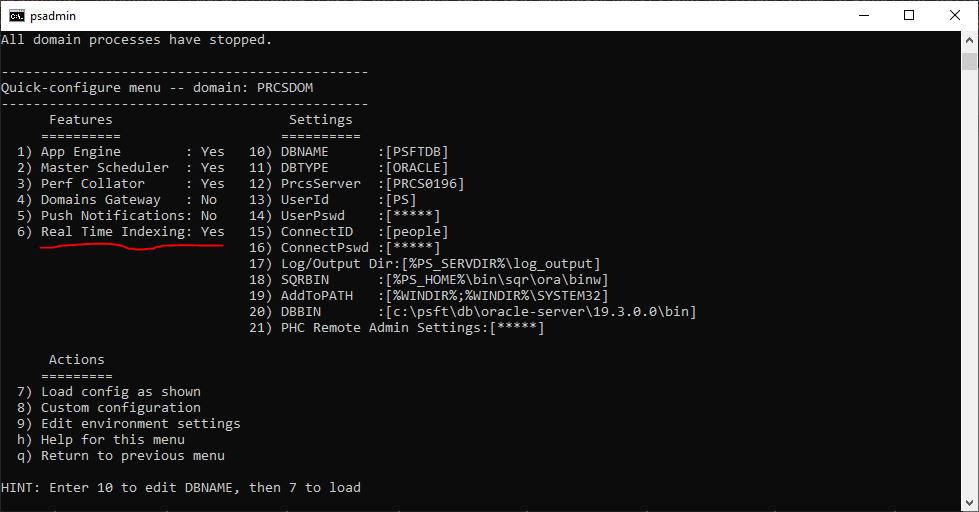
Let's start with the Process Scheduler Server. Using the psadmin command, make sure Real Time Indexing is enabled, as demonstrated in the following screenshot:

This turns on the "watcher" process. On interval, the PSRTISRV service polls the RTI staging table, PS_PTSF_RTISTG, for new rows to process. We can tune the number of RTI instances through the psprcs.cfg file.

[PSRTISRV]
;=========================================================================
; Settings for Real Time Indexing watchdog
;=========================================================================
;-------------------------------------------------------------------------
Min Instances=1
Max Instances=1

We may configure the polling interval through the Search Instance Search Options Config (PeopleTools > Search Framework > Administration > Define Search Instances). The last several options relate to RTI:


The Heartbeat Interval determines how often the RTI process checks for new rows in the RTI staging table (PS_PTSF_RTISTG). The Real Time Indexing Set Size specifies how many rows to process on each interval. The point is to tune these two numbers for optimal performance. The shorter the interval, the closer to real time, but with a performance cost. The longer the interval, the less the performance impact. Too long of an interval, however, and the number of transactions per interval may exceed the Set Size threshold, meaning RTI may only clear the queue after hours, creating a larger backlog with each run.

As a side note, PeopleSoft queues transactions for RTI through database triggers. A bulk update to a triggered table may generate more transactions than RTI can clear in a single polling interval, creating a latency effect for online transactions. Given the default configuration parameters, PeopleSoft will index 300 transactions every 2 seconds. If we batch update 30,000 rows of data, we may have to wait 4 minutes before that data clears the queue. 300,000 rows of data? Roughly 35 minutes. With this in mind, we may want to remove an index from RTI before a batch update, run the update, re-enable, and then schedule an incremental build to catch up. That way, intermittent, unusual batch processing doesn't interfere with online RTI processing.

Index Configuration

After configuring server settings, we choose which indexes to enable. Navigate to PeopleTools > Search Framework > Configure Realtime Indexing to select an index. To start with, pick indexes that are Disabled. These are indexes that contain RTI metadata, making them trivial to enable. Indexes marked as Not Configured may be enabled but will require additional configuration before enabling.


In our demo environments, we enabled PTSF_RECENTMENU. To enable an index:

  • Check the box Enable Real Time Indexing,
  • Save, and
  • Click the Trigger SQL link to download database-specific triggers.


When you click the Trigger SQL link, PeopleSoft will either open three new tabs or download three new files (it depends on browser configuration and registered handler for SQL files). The file name identifies the database: ora for Oracle, mss for Microsoft SQL Server, and db2 for DB2. If your browser opens them in new tabs instead of downloads, scroll to the end of the address bar to confirm the file name. This is where I made a mistake. I had so many open tabs that I didn't notice PeopleSoft opened three new ones. I only saw one and kept trying to run the DB2 script against my Oracle database.

Alternatively, as described by Ravi and Ramasimha in their Quest Recorded Webcast, we can let App Designer build the proper database triggers for us. I appreciate the App Designer integration because it ensures future record changes won't delete the RTI trigger scripts. It also means I don't have to log into a separate SQL tool or verify that I chose the correct database script.

After enabling RTI for an index, PeopleSoft recommends running a full or incremental sync to ensure all data exists in the target index. After that, you can cancel any scheduled run controls for that index, as RTI will now manage the incremental updates for that specific index.

Here are some great resources with additional information about RTI:

Is RTI Really "Real time"?

Realtime usually means data automatically flows from one system to the next. Create data → Send data. If RTI were truly real time, each update would send immediately. But if you have up to 300 updates within a 2-second period, a real time interface would create 300 connections to incrementally send 300 updates. PeopleSoft's near real time approach, however, is a lot like App Engine's Bulk Update. Another way to think of it is that RTI is a shuttle with room for 300 passengers. A shuttle arrives once every 2 seconds to pick up however many passengers are waiting. This is far more efficient than sending up to 300 vehicles individually. And even better, through parameters, we can tune the interval and passenger count to achieve the best experience for our users.

Which Indexes Should You Enable?

We recommend starting with PTSF_RECENTMENU. This allows the portal search feature to suggest user and enterprise recent items within search results. Next, we suggest enabling indexes used by component keyword search so your users may view transactions immediately after creation.


At JSMpros, we teach PeopleTools concepts every week. Each student who attends a live training class receives a properly sized, personal training server with relevant PeopleTools and application versions for the duration of training. This is one of the ways we provide you with an unparalleled training experience! Check out our website to see what we are offering next!

Access all of our content anytime from anywhere through our all-access subscriptions. Check it out!

Wednesday, April 15, 2020

Fluid Navigation Collection Tile Parameters

The Fluid navigation paradigm starts with role-based homepages and usually finishes with business process-based tiles. And, the most common way to build a business process-based tile is with a Navigation Collection published through Tile Wizard. Now I'm going to ask a question with an obvious answer. OK, so here goes, Do you build them in Dev, Test, or Production? And, I'm sure you answered, "Development, of course." Nicely done! What about migration? Here's the really cool thing: Navigation Collections are just portal registry structures, so we can migrate them just like any content reference: add them to a project. I've seen several comments and posts discussing this.

Now, perform a quick search for PTPPB_GROUPLET. Did you find anything interesting? Here, let me summarize: PTPPB_GROUPLET is an ADS used to migrate Tile Wizard metadata. Next question: Do you need to migrate Navigation Collection Tile Wizard metadata? There is a bit of debate around this one, but the real answer is: It depends. Many Tile Wizard data types depend on Tile Wizard metadata at runtime, but Navigation Collections do not. Tile Wizard is just a tool we use to create the Navigation Collection's content reference. A Navigation Collection Tile Wizard tile is actually processed through a special Activity Guide template, not through a Tile Wizard runtime. So to answer the question, no, you don't need to migrate Navigation Collection Tile Wizard metadata for a Navigation Collection Tile to work properly.

I'm going to ask you another question: Do you think you might want to use Tile Wizard to maintain your Navigation Collection tile? If yes, then you may want to think about migrating Navigation Collection Tiles through PTPPB_GROUPLET. Why? Most of us periodically copy Production over Dev. If we want our Dev resources to persist, we must migrate them to production. Otherwise, we'll lose the ability to maintain Tile Wizard metadata post copy. So no, you don't need to copy Navigation Collection Tile Wizard metadata for Navigation Collection tiles to work. But Yes, you should copy Tile Wizard metadata if you want to be able to maintain your Navigation Collections going forward.

OK, so maybe it is too late, and you now find yourself with Navigation Collection Tiles with no Tile Wizard metadata. Can you still maintain them? While reviewing CS PUM 16, I found myself in this exact situation. It appears that CS includes several Navigation Collection tiles in a "demo" category, but no Tile Wizard metadata. Fortunately, all Navigation Collection Tile metadata is stored with the content reference. All we have to do is manually update the content reference. Here is a list of the parameters, values, and descriptions of each. First, let's start with a sample content reference Portal URL:

c/NUI_FRAMEWORK.PT_AGSTARTPAGE_NUI.GBL?CONTEXTIDPARAMS=TEMPLATE_ID:PTPPNAVCOL&scname=ADMN_TILE_ADMINISTRATION&PanelCollapsible=Y&PTPPB_GROUPLET_ID=JSM_TILE_MAINT&CRefName=ADMN_NAVCOLL_1

This URL starts pretty normal, listing the Fluid Activity guide component as the starting point. Next, like any Activity Guide, we see the Activity Guide template ID. Everything after that is the domain of the Tile Wizard. Here is a list of URL attributes we can change to alter the behavior of our Navigation Collection tile:

TEMPLATE_ID
PTPPNAVCOL for "optimized" and PTPPNONOPT for "non-optimized"
scname
Navigation Collection ID (the real "name", a folder CREF ID)
PanelCollapsible
Y: Include the collapsible button beside the left panel.

The rest of the URL doesn't seem to matter.

Each week, you can find Jim Marion teaching a PeopleTools class somewhere on planet earth. Register for one of his upcoming classes at jsmpros.com.

Tuesday, April 05, 2011

Pagelets, WorkCenters, etc in White Paper

Some of my friends from sales and product strategy just put together a very nice white paper on some of the new features in PeopleTools and Applications Portal (formerly known as Enterprise Portal). I created some of the content in the screen shots (home page layout, accordion navigation collections, slide show news publications, etc) and they did all the writing. Download a copy and see what you can do with your PeopleSoft application. The paper is titled PeopleSoft Applications Portal and WorkCenter Pages.

Wednesday, May 14, 2008

Keep the Last Visited Homepage Tab Active

If you have used PeopleSoft's Enterprise Portal, then you may have noticed that the active homepage tab is only active when you are viewing that specific homepage tab and that none of the homepage tabs are active when you navigate away from a homepage. As a new PeopleSoft user, I didn't understand why none of the tabs were active once I navigated away from a homepage. To me, it seemed that keeping the last visited homepage tab visibly differentiated as the active tab helped me know what portion of the application I was using after I left a homepage. For example, if I was creating a purchase requisition, then I wanted the Procurement tab to stay active. Likewise, if I was modifying a branding header, then I wanted the Administration tab to stay active. As I continued to work with the PeopleSoft applications, however, I realized that my active tab navigation paradigm didn't make sense given the fact that all the pages inside my PeopleSoft Enterprise Portal displayed the same Enterprise Menu. Because the Enterprise Menu exists on every page, it would be possible for someone to start on a Manager Self Service tab, initiate an employee transfer, and then use the Enterprise Menu to navigate to the purchase requisition component, a business process better aligned with the Procurement tab. In this scenario, the active tab would still be Manager Self Service even though the user is entering a purchase requisition.

At Collaborate '08, a customer asked me, "How do you keep the active tab active after you navigate away from a homepage?" Since I had been through this thought process myself, I answered him with the explanation above. Nevertheless, because PeopleSoft is so flexible, it is possible for you to implement your Enterprise Portal in a manner that separates Procurement content from Manager Self Service content. For example, you could change the default content reference template from DEFAULT_TEMPLATE to MY_CUSTOM_MENU_TEMPLATE and use a custom menu implementation that shows content targeted to the active tab. If you implemented PeopleSoft's Enterprise portal in this manner or if keeping the last visited tab active just makes sense to you, then here is the code to help you keep that last visited tab active. You will need to add this code to the HTMLProcess method of the HTMLProcess class contained in the EPPBR_BRANDING Application Package (the constructor of the EPPBR_BRANDING:HTMLProcess application class). I included seven lines above the modification and seven lines below the modification to help you find the correct place to add this code (14 lines of context). The code you need to add is the 6 lines in bold below between the 7 lines of delivered code.

...
&strRefreshHomePage = "";
&strContentHref = "";
&strLayoutHref = "";
&dEffdt = %Date;
/* override effdt is for editing only, the value should be set when called from configuring site overrides */
&OverrideEffdt = &dEffdt;
&strActiveTab = &Request.GetParameter("tab");

REM ** BEGIN ABC_123456; me@mycompany.com; 14-MAY-2008; keep last active tab active;
Local string &tempActiveTab = &strActiveTab;
If (None(&tempActiveTab)) Then
&strActiveTab = %HPTabName;
End-If;
REM ** END ABC_123456; me@mycompany.com; 14-MAY-2008; keep last active tab active;

If &strLocation = "M" Then
&strHdrFtrType = "P";
Else
&strHdrFtrType = &strLocation;
End-If;

If &strLocation = "P" And
...

As you can see from the 7 lines preceding the modification, the delivered behavior is to determine the active tab from the tab query string parameter that exists on homepage URL's. The reason the active tab doesn't stay active when you navigate to content surfaced through your Enterprise Portal is because the tab query string parameter doesn't exist on those other pieces of content. To work around this, we can use the %HPTabName system variable to determine the most recently active tab.

If you make this change, you will be modifying code delivered by Oracle. If you document your modification, then you should be able to carry this modification through bundles and upgrades with little impact. The key to a successful modification is documentation. By documentation I mean, you include this modified PeopleCode in a project and you document the PeopleCode change within the PeopleCode object. At bundle/upgrade time, your compare reports will show the PeopleCode changes line by line. If you documented the start and end of your modification with a PeopleCode comment and include a site specific identifier in that comment, then it should be easy for you to find that modification and reapply it. For example, in the code above, I use ABC_123456 as my site specific identifier. The ABC portion identifies the code as created by my company, not Oracle, and the 123456 portion is the modification specific identifier used by me to track this specific modification.

%HPTabName uses a cookie to determine the active tab if the URL does not contain a tab query string parameter. If a user enters the PeopleSoft application through a link from a workflow e-mail, then that user will see an active tab matching the last tab visited, which may or may not be relevant for the URL specified in the workflow e-mail. Likewise, if the user cleared his or her cookies, then that user would not have an active tab. You could work around this limitation by creating your own method for tracking and setting the active tab. For example, if the target is not a homepage (no tab query string parameter and/or the presence of /h/ in the URL), then, using PeopleCode functions and system variables, you could determine the node that provides the target content and change the active tab accordingly. Another idea would be to set a default tab attribute on every relevant content reference and use that attribute to determine which tab should be the active tab for the target URL.

Monday, March 24, 2008

Google Gadgets for your PeopleSoft Enterpise Portal

Have you tried using the Pagelet Wizard's HTML data source to add Google Gadgets to your PeopleSoft Homepage? If not, browse through the Google Gadgets directory and select one you like. After customizing your Gadget, click the "Get the Code" button. Notice the code is an HTML script tag. Copy this code and paste it into the HTML editor of a new Pagelet Wizard HTML data source pagelet. Publish, save and add your new pagelet to your homepage. Did you notice anything unusual... like... the Gadget appeared at the top of the homepage, not within the pagelet's designated area? If you look at the source code for your homepage from within your browser, you will notice that the script tag you copied is actually in the homepage's head element, not in the body. This behavior is the result of the way the PeopleTools portal constructs the homepage. For each pagelet on the homepage, the portal retrieves the pagelet's source and reviews it prior to inserting it into the homepage. If the pagelet's source contains a full HTML document (with HTML element, head, and body), then the portal will insert the components of the head tag into the homepage's head tag. For example, if the pagelet's head tag contains style definitions, those style definitions will be inserted into the head tag of the home page. Likewise, if the pagelet's source is not a full HTML document, but contains script, link, or style elements at the root, or top level, then those elements will be inserted into the head tag of the homepage. This behavior is by design. It allows pagelet designers to embed script and style definitions into the head element of pagelet HTML documents, the only valid place for sytle definitions.

To work around the homepage construction issue, wrap the HTML provided by Google inside a <div> tag. This will keep the portal from moving the script element. I use the following HTML to center the gadget within the Pagelet's defined box. Adjust the width to match the width of your Google Gadget plus a pixel or two.

<div style="margin-left: auto; margin-right: auto; width: 325px;">Google script...<div>

Here are some Google Gadgets you will find on my PeopleSoft homepage Google Calendar, Google Talk, and Google News.

Thursday, February 07, 2008

Portal Template Settings

PeopleSoft uses Content References (CREF's) to describe how to display content within the PeopleSoft Portal (Enterprise or standard PeopleTools Portal). A very important setting for describing how to display a CREF is the CREF's template. The template describes how the content should be wrapped or "framed." Some templates proxy content into a single HTML page. Other templates use frames to display content. The most common frames template is the template that displays the header at the top, a menu on the left, and a content window on the right. If a CREF does not specify a template, then the Portal will use the default template. The default CREF template is set in PeopleTools > Portal > General Settings. If you haven't changed this setting, then your template is DEFAULT_TEMPLATE, also known as Portal default template. After looking up the default template, we can navigate to PeopleTools > Portal > Structure and Content to view the definition for this template. Templates are stored in the portal registry under Portal Objects > Templates. If your template has a storage type of "Local (in HTML Catalog)", then you can modify your template's HTML directly in this CREF. CREF's with a storage type of "Remote by URL", like the Portal default template, usually retrieve dynamic content from an IScript. Theoretically, you could store your template definition in any format or system as long as it is accessible by a URL (think of the possibilities for dynamic or even hosted templates). The IScript for the delivered Portal default template reads its settings from a different Content Reference. The name of this settings content reference is stored in the field PT_PORTAL_PROFILE of table PS_PTPP_OPTIONS.

SELECT PT_PORTAL_PROFILE FROM PS_PTPP_OPTIONS

With just a CREF name, you will have a hard time changing the template's values. The post Query for Component and/or CREF Navigation contains SQL to help you find the Structure and Content navigation for the CREF stored in PT_PORTAL_PROFILE. If you haven't customized your system, the settings CREF is PT_PORTAL_PROFILE (or PAPP_PORTAL_PROFILE if you are using Enterprise Portal). The PT_PORTAL_PROFILE CREF is stored in the Portal Registry's structure and content at Tools - Hidden > PeopleTools Portal Profile (For Enterprise Portal: Enterprise Portal - Hidden > Enterprise Portal Profile). From this CREF's attributes, you can specify the frame header height, whether to display the menu title, whether to show Search in the menu, as well as many other portal related settings. For example, if you wanted to change the frame header height from the default of 65 to 48 to give you more space for content, you would change the value of the attribute HEADER_FRAME_ROWS from 65 to 48.

Tuesday, December 04, 2007

Query for Component and/or CREF Navigation

I regulary have to figure out the menu/portal navigation to a component given nothing more than a component or a CREF name (AKA Content Reference or Portal Object Name). For example, looking at a Pagelet definition in the Pagelet Wizard, you may see the cryptic content reference name for a component, but nothing telling you how to navigate to that component and no hint to help you find it in the portal registry. Likewise, a user might give you the menu and component name of a troubled component, but not the navigation to that component. It is situations like this that we, as developers, can realize value from the PeopleTools meta-data. Since the navigation, CREF name, and menu/component relationship is stored in the PeopleTools database, we can query a tools table to determine this navigation. The following Oracle specific SQL displays the navigation to a given CREF name. If you use a different database, and are familiar enough with your database's SQL, please translate this statement and post it as a comment for the benefit of the rest of the community.

WITH PORTAL_REGISTRY AS (
SELECT RTRIM(REVERSE(SYS_CONNECT_BY_PATH(REVERSE(PORTAL_LABEL), ' >> ')), ' >> ') PATH
, LEVEL LVL
FROM PSPRSMDEFN
WHERE PORTAL_NAME = 'EMPLOYEE'
START WITH PORTAL_OBJNAME = :1
CONNECT BY PRIOR PORTAL_PRNTOBJNAME = PORTAL_OBJNAME )
SELECT PATH
FROM PORTAL_REGISTRY
WHERE LVL = (
SELECT MAX(LVL)
FROM PORTAL_REGISTRY )

NOTE: Even though I've written my fair share of SQL, I'm no expert. Please don't grade me on the elegance and efficiency of the previous statement. If you are an SQL expert, and have a better way of writing this recursive SQL statement, then, please, for the benefit of the community, paste that statement into a comment. That said, I'll continue with the topic at hand...

If we pass EP_STANDARD_CF_TMPLT_GBL as bind :1, then the result will be Root >> Set Up Financials/Supply Chain >> Common Definitions >> Design ChartFields >> Configure >> Standard Configuration.

Modifying the above SQL statement a little, we can determine the navigation for a given menu, component, and market (the Ctrl-J data our users usually give us):

WITH PORTAL_REGISTRY AS (
SELECT RTRIM(REVERSE(SYS_CONNECT_BY_PATH(REVERSE(PORTAL_LABEL), ' >> ')), ' >> ') PATH
, LEVEL LVL
FROM PSPRSMDEFN
WHERE PORTAL_NAME = 'EMPLOYEE'
START WITH PORTAL_REFTYPE = 'C'
AND PORTAL_URI_SEG1 = :1
AND PORTAL_URI_SEG2 = :2
AND PORTAL_URI_SEG3 = :3
CONNECT BY PRIOR PORTAL_PRNTOBJNAME = PORTAL_OBJNAME )
SELECT PATH
FROM PORTAL_REGISTRY
WHERE LVL = (
SELECT MAX(LVL)
FROM PORTAL_REGISTRY )

If we pass DESIGN_CHARTFIELDS for bind :1 (menu), STANDARD_CF_TMPLT for bind :2 (component), and GBL for bind :3 (market), then we will get the same result as the previous query, but using the Ctrl-J data rather than the CREF name.

Tuesday, September 04, 2007

A Quasi-dynamic Signout Template

Nested under the WEB-INF/psftdocs directory of your PeopleSoft web server, you will find several HTML templates. Even though the title of this post references the signout template specifically, the concepts outlined in this post are relevant to the other templates as well.

Template Variables

As you browse the delivered templates, you will notice that several templates include JSP/ASP style tags used to insert text into the template. To include additional localized text in the signout.html template, you can add an entry to your language's text.properties file. For example, to include the text Please contact the IT Help Desk for further information in your template, add the following text to the text.properties file.

6000=Please contact the IT Help Desk for further information

To insert that text into your template, add <%=6000%> to your template.

Query String

Since HTML templates are read and parsed by PeopleSoft, we really can't enhance them with dynamic content beyond the functionality built into that parser. Therefore, our ability to inject dynamic content into these templates is somewhat limited. Nevertheless, if we can get additional data into the logout URL as query string parameters, we can access those parameters from the template at "runtime" using JavaScript.

Now the real trick... appending key/value pairs to the logout URL. If you are using PeopleSoft's Enterprise Portal, you can modify the sign out link from the Define Headers component (Portal Administration > Branding > Define Headers). Other alternatives for enhancing the sign out link include modifying the HTML objects that define the header or using JavaScript to modify the href attribute of the Sign out link.

ServletFilter

Using a Servlet Filter like Monkeygrease we can inject valid HTML content (including JavaScript, CSS, HTML, etc) into the PeopleSoft response. If you really want to get dynamic, you can create your own filter to do just about anything (access a database with JDBC, call a web service, etc).